
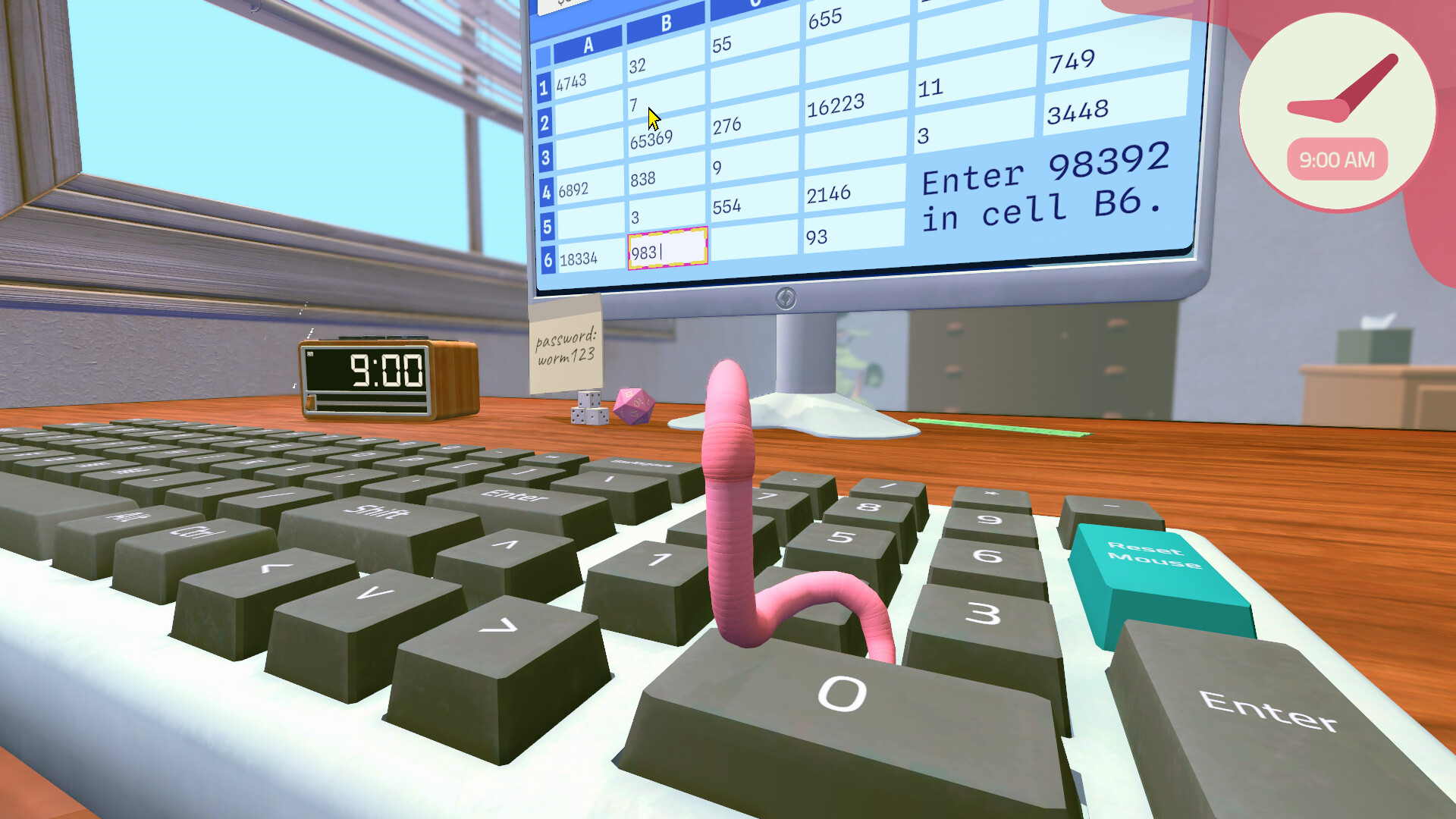
Enter a value in the right cell
Read the destination before moving: B6 means column B, row 6. Select that cell, type the requested value on the desk keyboard, and check the next prompt before starting another task. A cell containing a number is not necessarily the cell you need to change.
For a prompt asking you to multiply two cells, read both values first and calculate before crossing the keyboard.
Worked example — illustrative values: suppose B1 contains 6 and C4 contains 7, and the destination is A2. Calculate 6 × 7 = 42, select A2 and enter 42. This is an example of the method, not a fixed puzzle answer. Do not assume typing an Excel formula such as =B1*C4 completes the task.
Hold two keys with a die
The awkward part of bold and copy/paste is keeping a modifier pressed while your worm reaches another key.
- Select the cell you want to change.
- Move a die onto Ctrl so that it holds the key down.
- Keep the die in place while moving your worm to the required letter.
- Bash the letter key once.
- Check the cell, then move the die off Ctrl before typing ordinary text or numbers.
If the die rolls away, reposition it before pressing the letter. If a letter types into the cell instead of applying formatting, check that Ctrl is actually held. Repeatedly pressing a formatting shortcut can toggle the formatting back off.
| Task | Keys on the game’s desk keyboard | What to select first |
|---|---|---|
| Bold | Ctrl + B | The target cell |
| Italic | Ctrl + I | The target cell |
| Copy | Ctrl + C | The source cell |
| Paste | Ctrl + V | The destination cell |
These are actions on the virtual desk keyboard. The letters are not instructions to use your computer’s shortcuts while reading this page.
Copy between two cells
Select the source cell and use Ctrl + C. Then select the destination and use Ctrl + V. Copying does not finish a task that also requires pasting elsewhere. Read both coordinates before touching the keyboard, and release Ctrl when you are finished.
If a task will not complete
| What you see | Check this |
|---|---|
| Correct number, unchanged objective | Re-read the destination coordinate; you may have changed a source cell |
| Wrong result | Re-read both source values and the operation, especially subtraction order |
| An extra digit appears | Your worm may have hit another key while crossing the keyboard |
| B or I appears instead of formatting | Reposition the die so Ctrl stays down |
| Mouse has wandered out of reach | Use the game’s mouse-reset control, then select the cell again |
Advanced Spreadsheets
The Junior demo offers an Advanced Spreadsheets perk for harder files with larger rewards. Choose it when basic tasks and two-key shortcuts are already manageable. If completing a file still takes most of the day, practice the shortcuts before buying access to harder work.
See early perk choices for the alternative unlocks.
Demo walkthroughs: copy/paste prompt; full-game review describing dice on keys.